As part of the notification process, Polaris will send notices to patrons via email, text or phone. Occasionally, when an email, voice or text message is sent but cannot be successfully delivered it will be considered "undeliverable" or "failed."
Email Notices
There are several reasons why an email notice might be bounce, including:
- A typo or misspelling in the patron's email address
- The patron's email account no longer exists
- The patron's email account is full or temporarily unavailable
Sometimes, the patron's email provider may also temporarily block or throttle incoming email for security or spam purposes. When this occurs, messages may be delayed in their delivery or denied altogetherWhen a notification fails, a message will be sent to the library's email address that sends patron notifications. This account can vary by library but is usually a generic email like "noreply@library" or "circ@library." The message will typically include the address that the message was intended for and an explanation of why it failed: For example:
- The email account that you tried to reach does not exist. Please try double-checking the recipient's email address for typos or unnecessary spaces.
- Sorry, your message to example@yahoo.com cannot be delivered. This mailbox is disabled
- Error: Invalid user address. Error message below: 550 - Requested action not taken: no such user here.
To maintain the reputation to email server, libraries should routinely monitor failed notices. If left unattended, Polaris will continue to send messages that will repeatedly fail. Repeated failures will damage the email sender's reputation which could prevent future messages from going out successfully.
Libraries using LX Starter should see additional troubleshooting steps here
Voice / SMS Notifications
All Pinnacle libraries use MessageBee for Voice and SMS notifications. Additional MessageBee information can be found in this article.
To generate a delivery failure report in MessageBee:
- Log in to the MessageBee Portal
- In the Header, select Reports -- Search Reports
- By default, this page will show both SMS and Voice notifications, but this can be modified to show only specific communication methods or notification types.
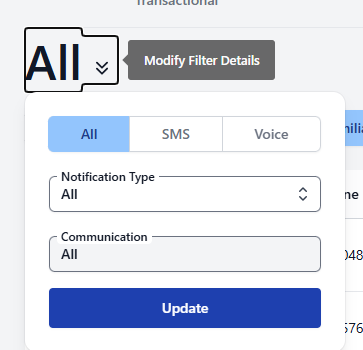
- Select a date filter, such as the "Last 7 Days"
- Under Advanced Filters, select Failed. Click Apply
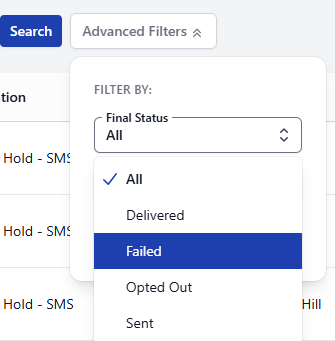
- The report will now show all failed notices in the selected time range.
- The report results show the date/time that the notification was sent, the patron's phone number and the patron's Record ID in Polaris. Additionally, the plus sign can be used to show more information as to why the notice failed.
Example failures include: "Carrier Rejected as Invalid Destination Address" or "destination-rejected"
Processing Undeliverable Notices
Libraries should plan to regularly monitor undeliverable messages. This should be done at least weekly, but daily is recommended.
For each undeliverable message, determine the type of message (email/text) and why it failed.
Emails/TXTs that are incorrect or no longer exist - If the message indicates that the patron's email address does not existOpen the patron's account in Leap
- Remove the email address from the patron's account.
- Add a Non-Blocking Note with the email address, the date, and your name indicating that the email bounced back as undeliverable.
- Change the patron's notification preference to phone or text messaging
- (Optionally): Contact the patron to verify the correct email address.
Inboxes that are full or temporarily unavailable - If the message indicates that the patron's email address exists, but they currently cannot receive email.
- The patron may receive the notice when the mailbox becomes available again. However, if notices continue to bounce on subsequent days, follow the steps above to change the patron's notification preference
Messages that are Rejected - Messages that are completely rejected are unable to be sent to the patron.
- If another contact method exists, change the patron's notification preference to another method.
- Add a note to the patron's account indicating that notices are not able to be sent until the patron's contact info is updated.
MessageBee Spam / Opt Out Options
Patrons may choose to opt out of receiving text messages or may mark the text as spam. If a patron does this, they will no longer receive text messages from MessageBee. Staff should use this information to update patron notification preferences in Leap or to help a patron re-enable SMS notifications from MessageBee.
To view the Opt Out report in MessageBee:
- Log in to the MessageBee Portal.
- In the Header, select Reports -- Communication Preferences
- The report will list phone numbers that have either marked text notices as Spam or SMS Opt Out.
- For each entry, edit the patron's registration in Leap or click the "Modify" button to view instructions on restarting notifications.
Was this article helpful?
That’s Great!
Thank you for your feedback
Sorry! We couldn't be helpful
Thank you for your feedback
Feedback sent
We appreciate your effort and will try to fix the article